
PMS Customization
Go to Settings > Customization > Planning
In this section you can customize or modify from esthetics details to the system behavior.
Important! This configuration is local and applies only for the device where it is setting up.
1. Appearance
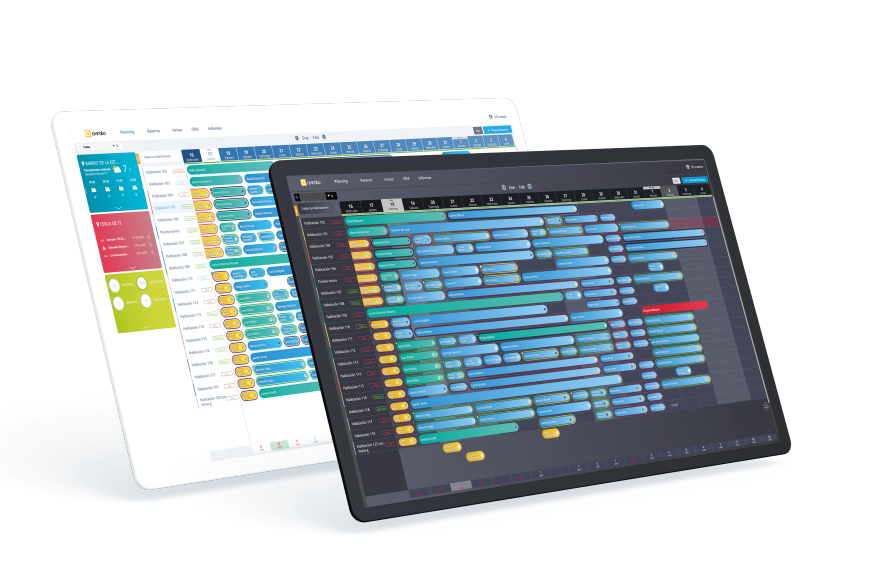
The main color of the PMS is White Plain by default but you can change it to Ash Black in the planning option.
2. System behaviour
Configure how the system responses to certain actions:
- Display planning after making a reservation. By turning on this option, the system automatically displays the planning after making a reservation.
- Change automatically checked-in status rooms to dirty. Every night after audits, checked-in rooms will change from clean to dirty.
- Assign automatically a room to reservations. This is for each reservation that has a room assigned by the check-in time and avoiding overbookings.
- Display pop-ups windows for external changes to reservations. A pop-up message will display when a reservation suffers modifications.
- Enable modification of the date of bookings. The system by default allows you to modify only the type of accomodation. By turning on this option you will also be able to change the date of booking.
3. Planning display
This is to set up the Avirato planning display on your computer.
Display days on the planning. There are two options. Set the number of days you want to be displayed or let the system automatically display the days depending on the size of the screen.
- Size of columns. You can configure the size of the columns of days in the planning. Also, the system automatically sets the size.
- Daily room assignment. By turning on this option, each reservation will have a room assigned automatically in order to avoid overbookings.
- Size of the square of rooms. Set up the size of squares that symbolizes the rooms in the planning.
- Display the day of the week. By turning on this option you will see the date and the day of the week.
- Display the month. This is to see the month on the day 1 of each month.
- Display quantity of email templates sent. Turn on this option on the planningto to display in an envelope icon how many email templates has been sent.
*Did not find what you are looking for? Send us an email with your suggestion by clicking here.