
Working days control
Do not let nothing interrupt your hotel’s operation.
Since May 10th, 2019 Avirato enables the option Working Days Control for free, mandatory by the Royal Decree 8/2019.
1. What is the Working Days Control about?
This update will let you manage in a simple, easy, and quick way the intern operation of your company and under the law.
To be considered before starting:
The worker’s identification will be made with the ID, you can use either a webcam or a document reader.
Not all documents are compatible with the document reader. Check the list of compatible documents here.
2. How does it work?
As mentioned, the worker identification will be made with their compatible ID using a HD webcam or the document reader.
First, the system identifies the worker status and then gives them the options.
Also, it registers new workers automatically when introducing their ID.
3.Where can we find this option?
Go to the widgets menu at the left side on the PMS and select Working Days control.
To access Working Days control the lateral bar has to be displayed. Click on the orange button next to zone/subzones/rooms to swipe the menu. When clicking on Working Days Control button the following section will be displayed:
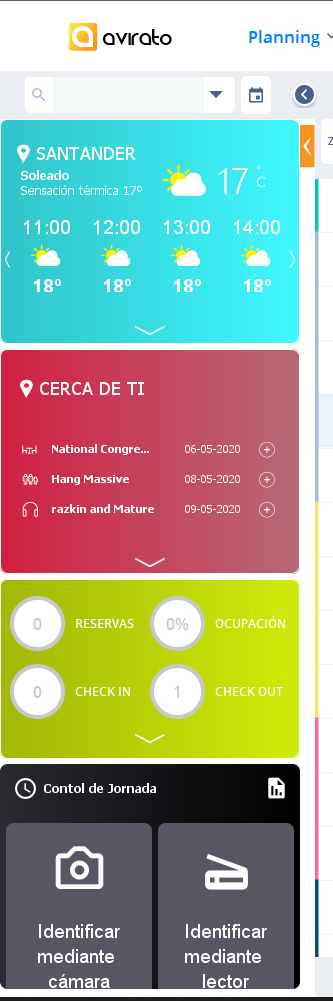
Identify with webcam
Identify with document reader
Important! The identification has to be made before a status change. For new workers, the system will register automatically.
Employee identification and status
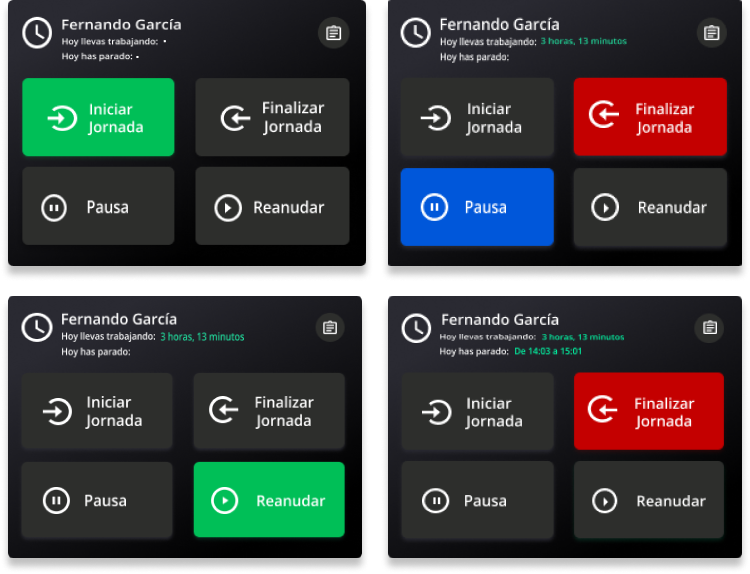
The system will identify the worker and their current status.It displays the following options:
Start shift: The first identification of the worker.
Breaks: When the system identifies the worker started the working day but has not taken their break.
Resume shift: when the break is the last detected status
End shift: When the system identifies the worker has started the working day.
To be considered:
There may be shifts without the right to a break, so the option to end the day will be available even if no break has been taken.
To guarantee the correct functioning of the system, it is recommended to use an official compatible document reader or a web camera with a minimum resolution of 720p.
Only one break allowed per shift.
Records cannot be added or edited manually.
The record is only available in the Avirato PMS version.
4. Control of workers
You can check or download the working day control of each worker.
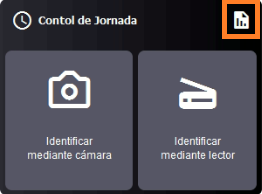
To do this, click on the icon on the upper-right of the option Working Days Control, this opens a window with the worker’s list and their working hours.
The current month will always be displayed by default, but you can check a different month by using the back and forward arrows.

In the upper band you can see the day of the week next to the number of the corresponding month. In the vertical band there are the registered workers. The values will be represented on the right over the total working day.
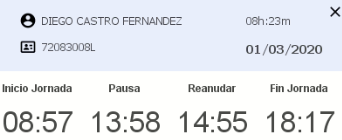
If you click on the worked hours, a pop-up window will open where you will see the hours of entry, break, resuming and end of working day.
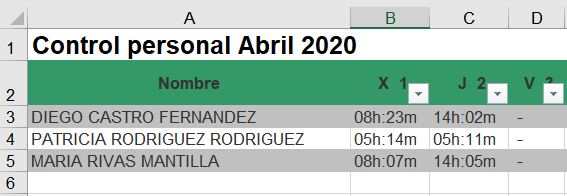
All the information collected in this section can be exported to Excel with the whole month view. All you have to do is click on the export button and give the file a name.
*Did not find what you are looking for? Send us an email with your suggestion by clicking here.